See the 3:45 min video here
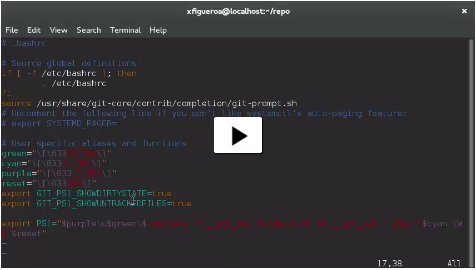
If you are using Fedora 21 Workstation like me jump to step 5 ;)
1 Installation
If you’re on Fedora-based, you can use yum:$ yum install gitIf you’re on a Debian-based distribution like Ubuntu, try apt-get:
$ apt-get install gitConfiguration
There are two ways:
Modifying files
/etc/.gitconfig        # System level
 ~/.gitconfig          # User level
 Repository/.git/.gitconfig   # Repository level
Using commands
git config --system # System level
 git config –global    # User level
 git config            # Repository level
2 Minimal
git config --global user.name “Xavier Figueroa”
 git config -- global user.email “example@devm.com”
 git config --list
 user.name=Xavier Figueroa
 user.email=example@devm.com
 git config user.name
.gitconfig is hidden, so in order to see the file you need to use ls –a
xavi ~ $ ls -aTo see the content you can use
xavi ~ $ cat .gitconfig
 xavi ~ $ tail .gitconfig
 xavi ~ $ vim .gitconfig
3 Set Default Text Editor
git config --global core.editor "vim -w"or set the GIT_EDITOR, VISUAL, or EDITOR environment variables.
4 Auto-Completion
curl -OL https://raw.githubusercontent.com/git/git/master/contrib/completion/git-completion.bash
 curl -OL https://raw.githubusercontent.com/git/git/master/contrib/completion/git-prompt.sh
Rename file
mv ~/git-completion.bash ~/.git-completion.bash
 mv ~/ git-prompt.sh ~/ .git-prompt.sh
Edit ~/.bashrc
if [ -f ~/.git-completion.bash ]; then
 source ~/.git-completion.bash
 fi
 if [ -f ~/.git-prompt.sh ]; then
 source ~/.git-prompt.sh
 fi
5 Improve the bash
Add the following ~/.bashrc
 if [ -f /usr/share/git-core/contrib/completion/git-prompt.sh ]; then
 source /usr/share/git-core/contrib/completion/git-prompt.sh
 fi
 green="\[\033[0;32m\]"
 cyan="\[\033[1;36m\]"
 purple="\[\033[1;35m\]"
 reset="\[\033[0m\]"
 export GIT_PS1_SHOWDIRTYSTATE=true
 export GIT_PS1_SHOWUNTRACKEDFILES=true
 export PS1="$purple\u$green\$(declare -F __git_ps1 &>/dev/null && __git_ps1 ' (%s)')$cyan \W $ $reset"
6 Getting help
git help to see the list of commandsgit help <specific command> to see how to use the command
Pressing space or f will move you forwards or b pressing b will move you backwards as well
Pressing q stands for Quit will take you back to the command line
References
blog.devm.org
http://git-scm.com/book/en/v2/Customizing-Git-Git-Configuration
https://help.github.com/articles/associating-text-editors-with-git/
http://www.sublimetext.com/3